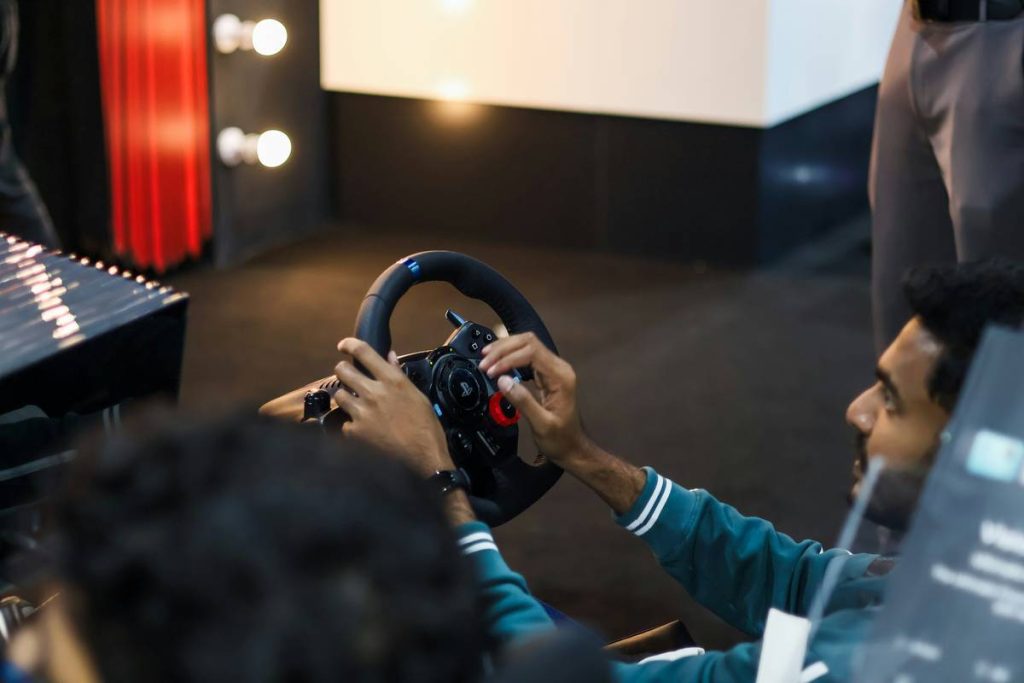
You bought a PS5. You love your DualSense. But the moment you strap on a VR headset, everything feels… off. Clunky. Disconnected. That immersive world? Broken by controllers never meant for 3D space. And it’s not your fault—Sony’s ecosystem wasn’t built for this from day one.
The Core Problem: PS5 Controllers Were Never Designed for True VR
The DualSense is a marvel—adaptive triggers, haptic feedback, sleek design. But it’s a flat-world device. VR demands spatial awareness, finger tracking, and wrist freedom. The PS5’s native controller lacks inside-out tracking, grip sensors, or even basic finger detection. You’re navigating 360° environments with a tool built for a 2D plane.
Think about it: throwing a virtual ball shouldn’t feel like pressing a button—it should feel like *throwing*. Yet most gamers force their PS5 setup into VR using workarounds that sacrifice immersion. And latency? Even 20ms ruins presence.
How to Bridge the Gap: A Practical Upgrade Path
Forget “just using what you have.” Real VR control requires rethinking your input stack. Here’s how top-tier players do it—without selling a kidney.
Option 1: Use PSVR2’s Native Sense Controllers
If you own a PlayStation VR2, Sony’s Sense controllers are non-negotiable. They offer eye-tracking sync, adaptive triggers inherited from DualSense, and full six-degrees-of-freedom (6DoF) motion. This is the smoothest path—but only if you’ve already committed to PSVR2.
Option 2: Hybrid Setup via SteamVR + Third-Party Adapters
For PC-based VR headsets (like Valve Index or Meta Quest via Air Link), you *can* integrate PS5 controllers—but with caveats. Tools like “PS5 Controller for SteamVR” enable basic functionality, but lose haptics and battery life plummets. Not ideal for long sessions.
Option 3: Ditch PS5 Input Entirely for VR-Optimized Hardware
Sometimes, the best move is separation. Keep your DualSense for Horizon, switch to dedicated VR gloves or Oculus Touch Pro for Half-Life: Alyx. Specialized tools beat compromised hybrids every time.

| Solution | Cost | VR Compatibility | Key Limitation |
|---|---|---|---|
| PSVR2 Sense Controllers | $549 (with headset) | PS5 Exclusive | No cross-platform use; locked to Sony ecosystem |
| SteamVR + PS5 Adapter | $0–$20 (software) | PC VR (Quest, Index, etc.) | No haptics, poor battery, inconsistent tracking |
| Dedicated VR Controllers (e.g., Touch Pro) | $299+ | Cross-platform (via PC) | Requires separate purchase; no PS5 console integration |

The Industry Secret: Most VR Developers Don’t Test on PS5 Hardware
Here’s something Sony won’t tell you: indie VR studios overwhelmingly develop on PC-first rigs. Why? Because PSVR2’s SDK arrived late, documentation is sparse, and dev kits are scarce. So when you play a “PSVR2-optimized” title, chances are the hand physics were tuned for Oculus—not DualSense derivatives.
And this creates a hidden friction layer: button mappings feel unnatural, gesture recognition lags, and comfort settings assume PC ergonomics. The math is simple—less testing equals less polish. If you want peak VR performance, prioritize titles built natively for your hardware stack, not ported afterthoughts.
Frequently Asked Questions
Can I use regular PS5 DualSense controllers with PSVR2?
No. PSVR2 requires its proprietary Sense controllers. The standard DualSense lacks the necessary tracking rings and finger touch sensors.
Do gaming controllers PS5 work with Meta Quest?
Only via third-party software on PC, and with major limitations—no haptics, reduced battery, and no official support. Not recommended for serious VR use.
Are PSVR2 controllers worth buying separately?
They aren’t sold standalone yet. You must buy the full PSVR2 kit. But if you own a PS5 and want true VR, they’re essential—nothing else works.